10.1 Structure of the TPOmap Dashboard and access rights
10.1.1 Access to the TPOmap Dashboard
To access the TPOmap Dashboard, please select the Dashboard tab in the menu of the TPOmap Application and log into Power BI by clicking on “Sign-In”.
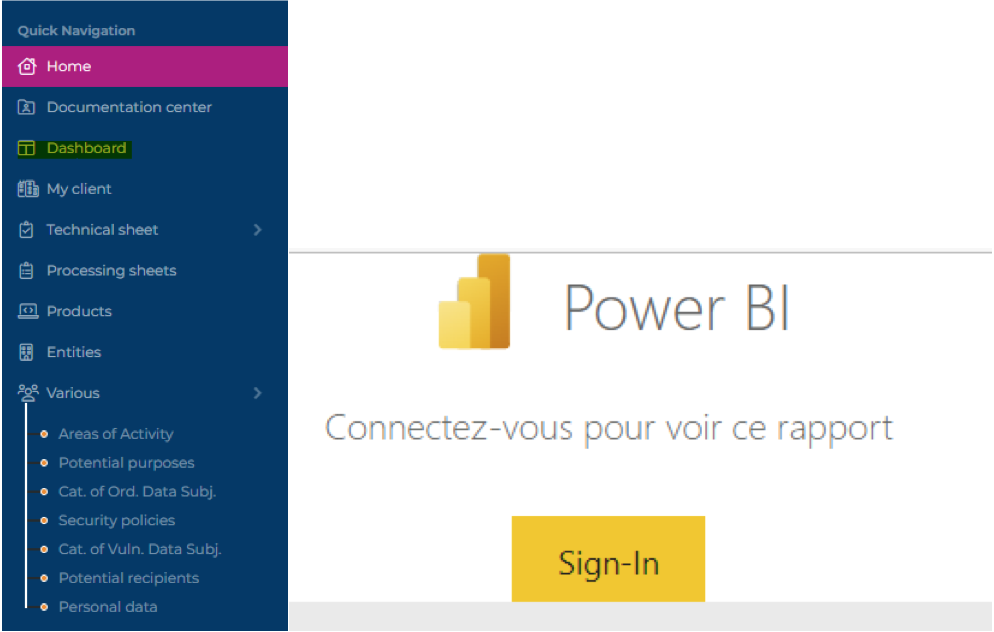
Please note that only the users which have received TPOmap Dashboard access rights and a Power BI licence will be able to see and use the Dashboard, non-authorised users will be displayed the equivalent of the above message depending on their system language.
Please contact The Privacy Office if you would like to benefit from a TPOmap Dashboard licence.
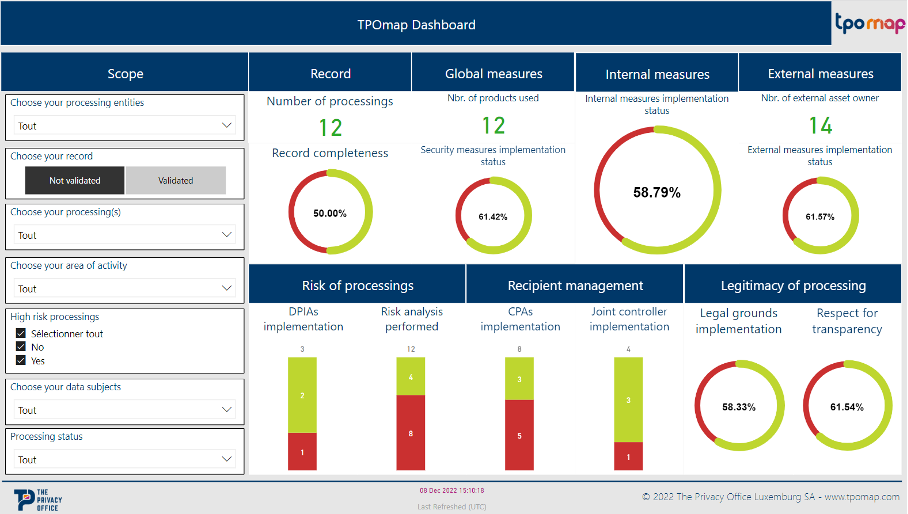
Access to the TPOmap Dashboard will allow you to keep track of your organisation’s current GDPR compliance and risk level status displayed on the main Dashboard shown below.
10.1.2 Structure of the main dashboard
This Section will explain each portion of the main dashboard.
10.1.2.1 Scope
The scope menu on the left can be used to redefine the scope of your status review.
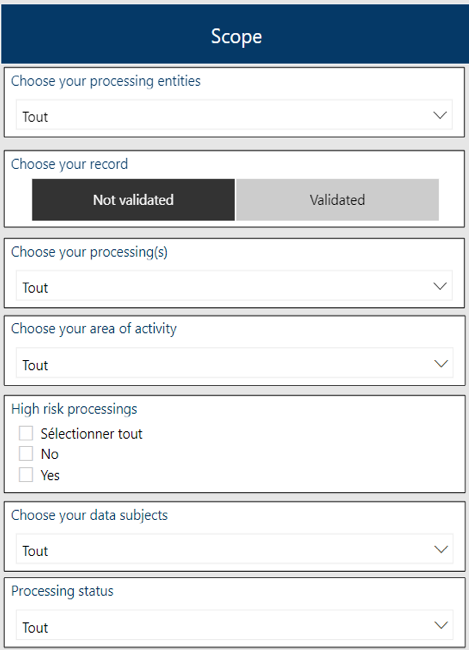
It will affect the value of all counters presented on the main dashboard as well as on the dashboards of the different modules.
Please note that all filters selected on the Dashboard will be reset to default when you log out of TPOmap.
You have the following counters:
- Choose your processing entities:
The available selection will depend on your type of TPOmap licence
Here, you can select to get access to the data of one specific Processing entity. By default, the data of all the Processing entities you have been authorised to access will be displayed. If you would like to get a more granular view, please open the dropdown list and select the processing entities you would like to display.
- Choose your Record of processing activities
The available Records will depend on your user role. The “Not validated” Record is displayed by default.
Please click on the black box representing the GDPR record you would like to display on the dashboard:
- Not validated
The information stored within the Records of processing activities currently not validated by an authorized user with a Data Protection Officer role will be displayed on the Dashboard.
- Validated
The information stored within the Records of processing activities that have been validated by an authorized user with a Data Protection Officer role will be displayed on the Dashboard.
- Choose your processing(s)
All the Records of processing activities (also defined as “processings” within TPOmap) will be displayed by default.
Please open the dropdown list if you want only one or several processing(s) to be displayed on the TPOmap Dashboard.
- Choose your area of activity
All the area of activities will be displayed by default.
Please select one or several areas of activity(ies) if you want only the processings of these areas to be displayed on the TPOmap Dashboard.
- High risk processings
By default, processings of ALL risk levels will be displayed.
Please select Yes to display only high-risk level processings within TPOmap Dashboard.
Please select No to display only Low and medium risk level processings within TPOmap Dashboard.
- Choose your data subjects
All the data subjects will be displayed by default.
Please select one or several data subject(s) if you want only the processings of these data subject(s) to be displayed on the TPOmap Dashboard.
- Choose your processing status
All the processing status will be displayed by default Please select one or several processing status if you want only the processings of these status to be displayed on the TPOmap Dashboard.
Warning!
Please note that if you use several filters at the same time, the order of filter selection is important, the 1st filter selected will immediately limit the choice in other filter categories.If you cannot find the information you need, please make your filter selection in a different order.
If you cannot find the information you need, please make your filter selection in a different order.
10.1.2.2 Module 1 – Record
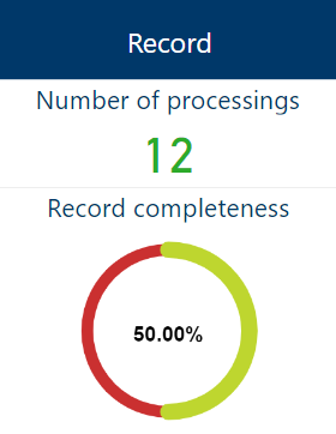
Please click on the blue box to access the Module 1 – Record Dashboard.
Please refer to Part 10.2 – Extract relevant information and statistics from the Record by using the TPOmap Dashboard of this User Guide for more information about the specific Dashboard of this Module.
You have the following counters:
- Number of processings
This counter will display the total number of Processing sheets currently created and stored in the TPOmap Application.
- Record completeness
This counter will display the global completeness percentage of all the Processing sheets currently stored in the TPOmap Application.
Filling Processing sheets Chapters 1 to 10 will raise this counter towards 100%.
Please refer to Part 7.2.2.2 – Complete a processing sheet of this User Guide for more information about how to complete Chapters 1 to 10 of a Processing sheet.
10.1.2.3 Module 2 – Internal technical and organisational measures
10.1.2.3.1 Internal measures
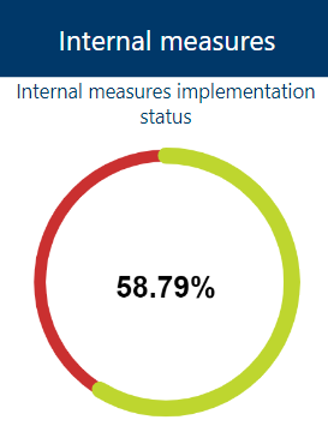
Please click on the blue box to access the Module 2 – Internal technical and organisational measures Dashboard.
Please refer to Part 9.2 – Allow to easily select and download relevant information regarding Internal measures of this User Guide for more information about the specific Dashboard of this Module.
You have the following counter:
- Internal measures implementation status
This counter will display the global percentage of implemented internal technical and organisational measures indicated in the Technical sheets currently stored in the TPOmap Application. Implementing technical and organisational measures for a Processing entity and then filling up the Implementation Status cell in the Technical sheet(s) of the corresponding Processing entity(ies) will raise this counter towards 100%.
10.1.2.3.2 External measures
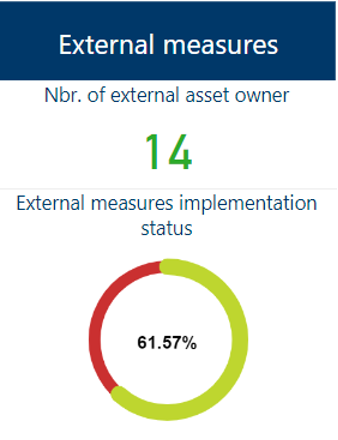
Please click on the blue box to access the Module 2 – External measures Dashboard.
Please refer to Part 9.3 – Allow to easily select and download relevant information regarding External measures of this User Guide for more information about the specific Dashboard of this Module.
You have the following counters:
- Nbr. of external products used
This counter will display the total number of IT Products (as entered in the Processing sheets currently stored in the TPOmap Application) which are under the responsibility of one or more external asset owners.
Recording products in the Processing sheets Chapter 4 – Assets will feed this counter.
Please refer to Part. 7.2.2.2.4 – Chapter 4 – Assets of this User Guide for more information about how to complete Chapter 4 – Assets of a Processing sheet.
- External measures implementation status
This counter will display the global percentage of implemented external technical and organisational measures as indicated in the Technical sheets for each external asset owner currently stored in the TPOmap Application. Implementing the external technical and organisational measures by contractually requesting their implementation from the relevant external asset owner(s) and then filling up the Implementation Status cell in the corresponding Technical Sheet(s) will raise this counter towards 100%.
10.1.2.4 Module 3 – Risk of processings
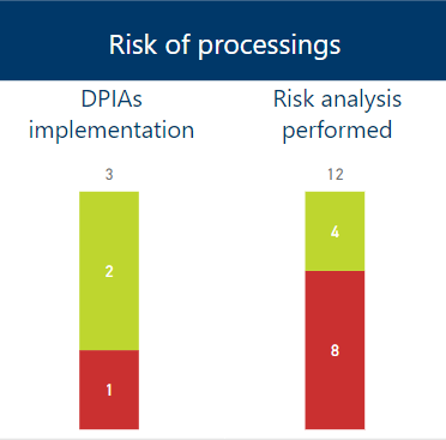
Please click on the blue box to access the Module 3 – Risk of processings Dashboard.
Please refer to Part 10.4 – EXTRACT RELEVANT INFORMATION AND STATISTICS ABOUT THE RISK OF PROCESSINGS BY USING THE TPOmap DASHBOARD of this User Guide for more information about the specific Dashboard of this Module.
You have the following counters:
- DPIAs implementation status
This counter will display the number of Data Protection Impact Assessments (hereafter “DPIA”)already realised out of the total number of DPIAs normally required for each high risk level processings.
Realising DPIAs and recording this information in the corresponding Processing sheets Chapter 11 – Risks to rights and freedoms in the DPIA Done cell will raise this counter.
Please refer to 7.2.2.2.11 Chapter 11 – Risks to rights and freedoms of this User Guide for more information about how to complete Chapter 11 – Risks to rights and freedoms of a Processing sheet.
- Risk analysis performed
This counter will display the number of Risk Analysis already realised out of the total of total of Risk Analysis to be performed (egal to the total number of processing).
Realising Risk Analysis and recording this information in the corresponding Processing sheets Chapter 11 – Risks to rights and freedoms by responding to the cell regarding the applicability, or not, of the 9 legal risk criteria of the European Data Protection Board and the cell regarding the applicability, or not, of the whitelist and blacklist, will raise this counter. Please refer to 7.2.2.2.11 Chapter 11 – Risks to rights and freedoms of this User Guide for more information about how to complete Chapter 11 – Risks to rights and freedoms of a Processing sheet.
10.1.2.5 Module 4 – Recipient management
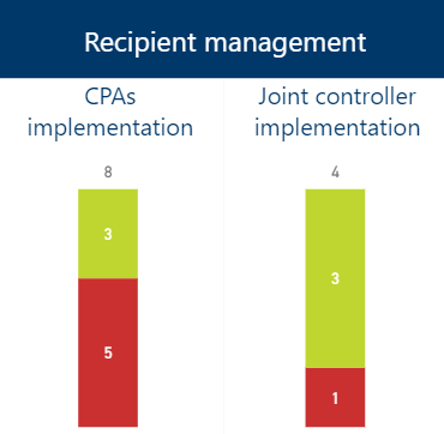
Please click on the blue box to access the Module 4 – Recipient management Dashboard.
Please refer to Part 10.5 – Extract relevant information and statistics about the recipient management by using the TPOmap Dashboard of this User Guide for more information about the specific Dashboard of this Module.
You have the following counters:
- CPAs implementation status
This counter will display the number of Controller Processor Agreements (hereafter “CPA”) already implemented with data processors out of the total number of CPAs needing to be implemented with all data processors.
Implementing CPAs with data processors and recording this information in the corresponding Processing sheets Chapter 9 – Data Recipients in the Cell– Transfer formality or contract reference will raise this counter.
Please refer to Part 7.2.2.2.9 – Chapter 9 – Data recipients of this User Guide for more information about how to complete Chapter 9 – Data Recipients of a Processing sheet.
- Joint controller implementation status
This counter will display the number of Joint Controller Agreements already implemented with joint data controller out of the total number of Joint Controller Agreement needing to be implemented with all joint data controller.
Implementing Joint Controller Agreement with joint data controller and recording this information in the corresponding Processing sheets Chapter 9 – Data Recipients in the Cell– Transfer formality or contract reference will raise this counter.Please refer to Part 7.2.2.2.9 – Chapter 9 – Data recipients of this User Guide for more information about how to complete Chapter 9 – Data Recipients of a Processing sheet.
10.1.2.6 Module 5 – Legitimacy of processings

Please click on the blue box to access the Module 5 – Legitimacy of processingsDashboard.
Please refer to Part 10.6 – EXTRACT RELEVANT INFORMATION AND STATISTICS ABOUT THE LEGITIMACY OF PROCESSINGS BY USING THE TPOmap DASHBOARDof this User Guide for more information about the specific Dashboard of this Module.
You have the following counters:
- Legal Grounds implementation status
This counter will display global percentage of Legal Grounds indicated in Chapter 12 of the processing sheets1 for all processing sheets currently stored in the TPOmap Application.
Implementing appropriate Legal Grounds for each processing and recording this information in the corresponding Processing sheets Chapter 12 – Most appropriate Legal Grounds will raise this counter towards 100%.
Please refer to Part 7.2.2.2.12 Chapter 12 – Most appropriated Legal Grounds of this User Guide for more information about how to complete Chapter 12 – Most appropriate Legal Grounds of a Processing sheet.
- Respect for transparency
This counter will display the total percentage of Privacy Notice that has been drafted out of the total number of Privacy Notice that need to be drafted.
Create Privacy Notice for each processing and each data subject and recording this information in the corresponding Processing sheets Chapter 13 – Applicable data subject rights will raise this counter towards 100%.Please refer to Part 7.2.2.2.13 – Chapter 13 – Applicable Data subject rights of this User Guide for more information about how to complete Chapter 13 – Applicable data subject rights of a Processing sheet.
1 They are taken into account since the Chapter is validated in the processing sheet: you must encoded have selected a legal bases (from art. 6 and art. 9 GDPR if applicable) for each data processed (as well as the implementation status of this legal bases)