10.2 Extract relevant information and statistics from the Record by using the TPOmap Dashboard
10.2.1 Provide a clear status of your Record in terms of number of processing activities and documentation completeness
The metrics that are important for the Module 1 – Record are the following:
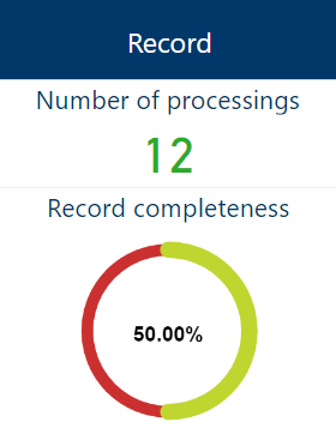
These metrics show two important counters:
- Number of processings
This counter will display the total number of Processing sheets currently created and stored in the TPOmap Application.
- Record completeness
This counter will display the global completeness percentage of all the Processing sheets currently stored in the TPOmap Application.
The purpose of the “Record completeness” counters is to calculate to which extend your Records of processing activities contain the information required by art. 30 GDPR. Accordingly, only the completeness of the chapters 1-10 of your Processing sheets is measured (see Part 7.2.2.2 for more information about how to fill a Processing sheets).
As a standard, these counters take count of ALL Processing sheets.
It is however possible, thanks to the “Scope” menu of the Dashboard, to count the number of processing and evaluate the completeness of:
- The Records of a specific processing entity;
- The Records of validated or not validated Processing sheets ;
- The Records pertaining to one or more selected Processing sheets;
- The Records pertaining to a specific area of activities of your organization;
- The Records pertaining to processing activities that present a high level of risk;
- The Records pertaining to one or several data subjects;
The Records pertaining to Processing sheets with a specific status.
For more information on how to use the “Scope” menu, please refer to Part 10.1.2.1.
10.2.2 Allow to easily select and download relevant processing sheets from the Record for maintenance purposes
By using the information displayed in this module, you will be able to:
- Create processing sheets summarizing information required by art. 30 GDPR on one page;
- Provide transparency on personal data processings from different standpoints (Record owner, processings, area of activities, processing risk, IT product);
- Provide a clear status of your Record in terms of number of processing activities and documentation completeness;
- Provide lists of data recipients with statistics regarding their legal qualification;
Provide statistics regarding the types of data subjects involved in personal data processing activities and the categories of personal data processed.
To access the information displayed in this module, please click on the “Record” button.
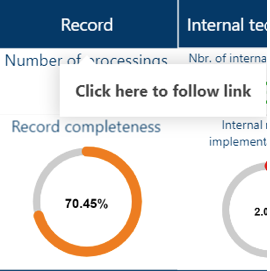
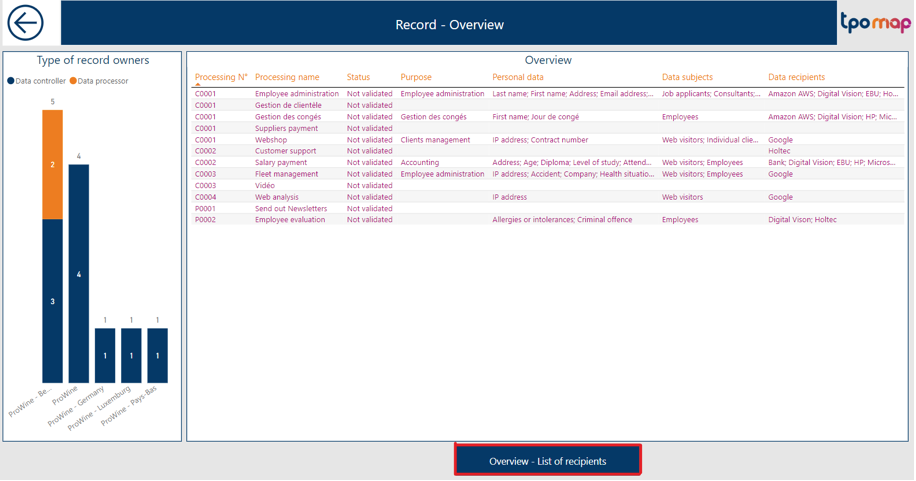
By clicking on this button, you will be led to a window providing you with an overview of all Processing activities documented in your Record.
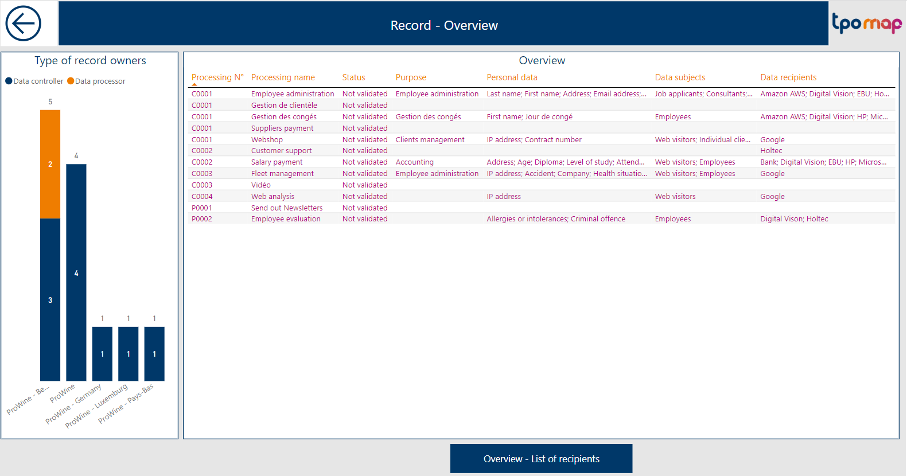
On that window, you have an overview of all processing activities contained in all types of Records of your processing entity or you can choose to simply have a look at the processing activities maintained by your processing activity in one quality, ex. Data Controller, Data Processor, …
You can apply theses filters by clicking on the appropriate square in the left window to filter by type of record owner.
Example: Displaying the list of processings where the record owner is the Data controller
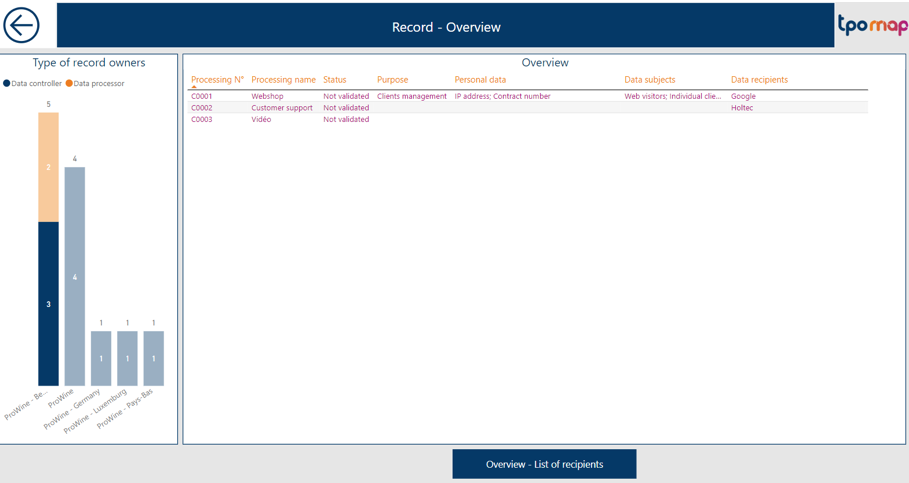
Based on this filter, you will easily identify and access the specific Processing activities that you wish to maintain. ! Please note that only one filter can be applied at any time, by clicking on a new part of a chart, all previous filters will be cancelled to display the corresponding new one.
If you want to have a more efficient view, it is possible to expand the overview window by using the focus mode.
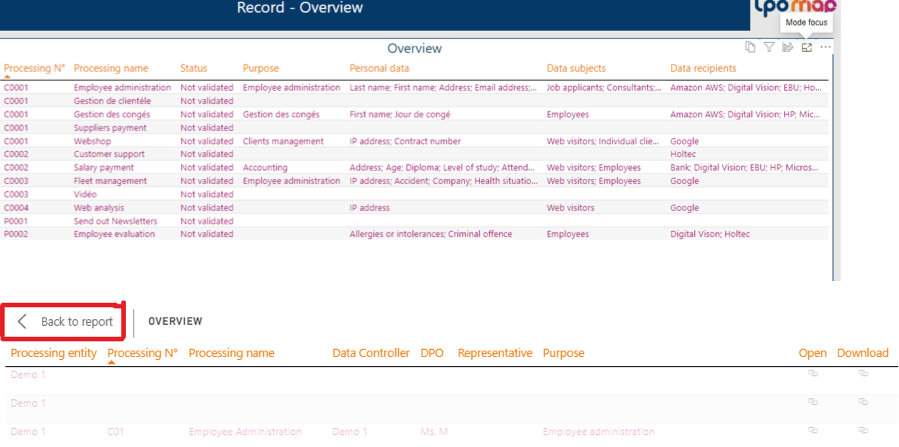
Please left click on “Back to report” button to get out of focus mode.
By clicking left on any of the columns name in the overview window, you can order the list by the corresponding category. By clicking right on one of the processing lines in the overview function, two extract functionalities can be accessed via the “Drill through” list:
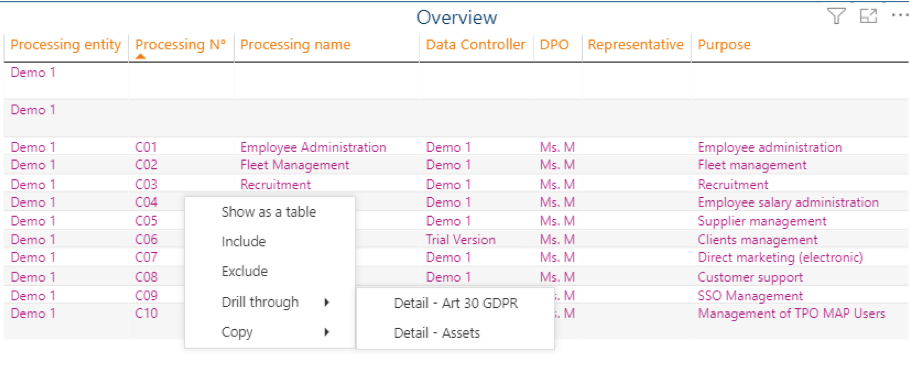
Detail Art 30 GDPR
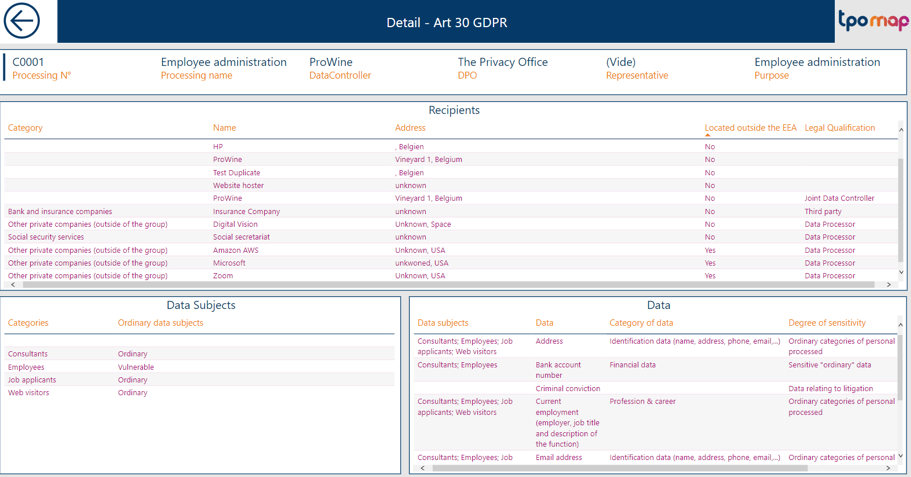
This will display in one page all the information required by the Article 30 of the GDPR to be provided about a specific processing.
Detail Assets
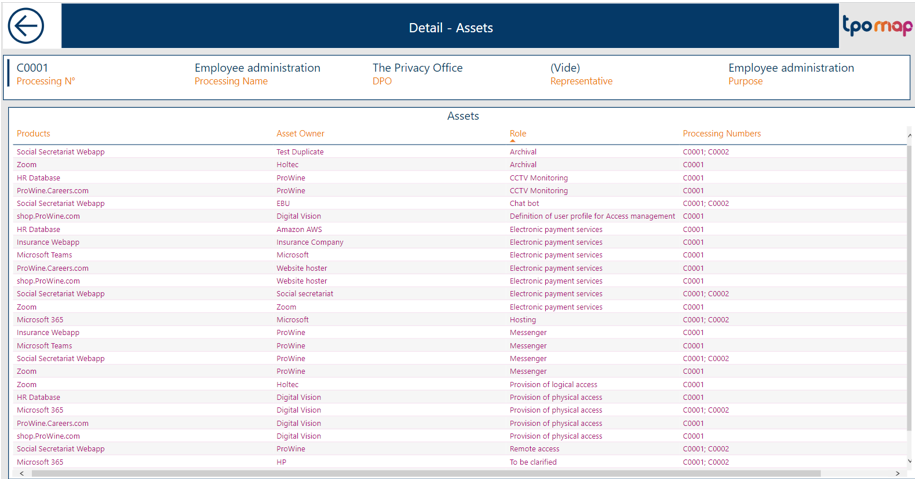
This will display all the IT products used by the specific processings selected with their respective asset owners and their role. It will also allow to keep track of which other processings are using the same products as the one being looked at.
For these both detail pages of any processings, it is also possible by left clicking on any of the columns name, to order the list by the corresponding category.
You can obtain a lists of data recipients with statistics regarding their legal qualification by clicking on the “Overview – List of Recipients” button.
After clicking on this button, you have access to a summary of the informations related to all the recipients recorded in the processing sheets:
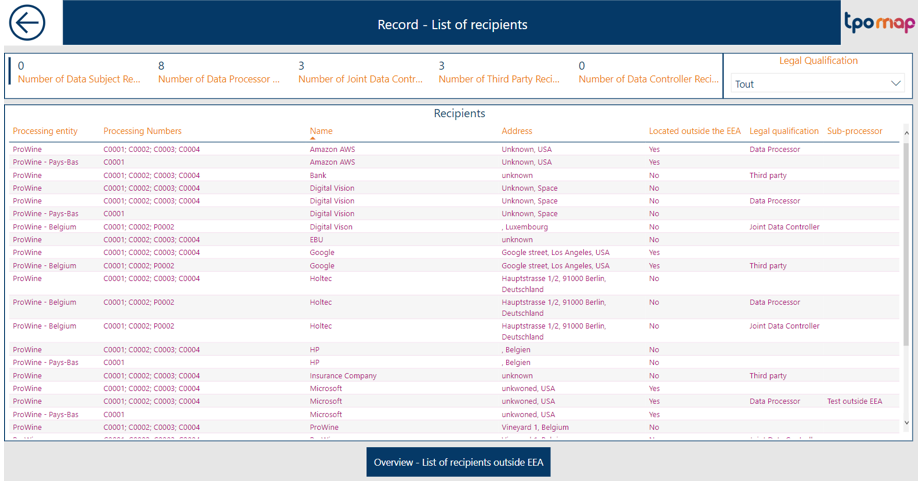
By clicking left on any of the columns name in the overview window, you can order the list by the corresponding category.
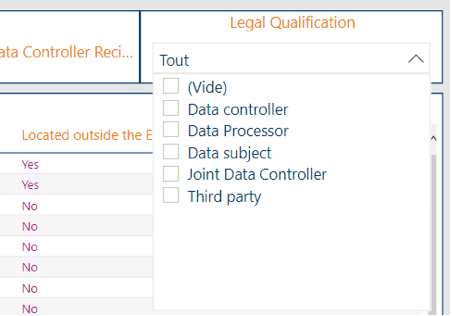
The List of recipients can be filtered by their Legal Qualification.
The Processing Numbers column allow to check for each recipient if several processings are concerned.
For more information about the Legal Grounds of the transfer of data to these recipients (ex: to know if the contract is in place or not), please consult the Recipient Management module of the TPOmap Dashboard.
You can also obtain a lists of data recipients located outside the EEA with statistics regarding transfer tool by clicking on the “Overview – List of Recipients outside EEA” button.
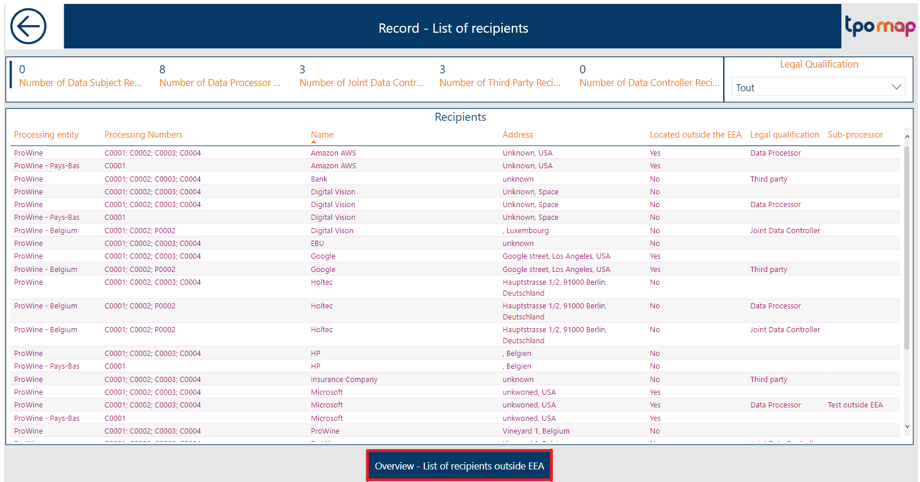
After clicking on this button, you have access to a summary of the informations related to all these recipients recorded in the processing sheets:
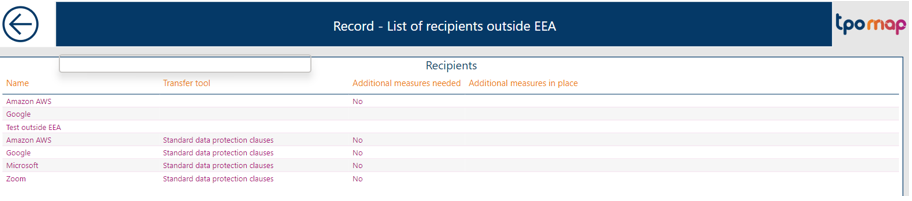
By clicking left on any of the columns name in the overview window, you can order the list by the corresponding category.
10.2.3 Extracting information outside of the TPOmap Dashboard
You can extract information from the TPOmap Dashboard, for example in order to create reports by simply using your device screenshot function or by extracting information in the Excel or csv formats from any table of the TPOmap Dashboard pages by using the Export Data functionality.
Please click on the “…“ icon in the upper right corner of a table and then chooseExport Data.
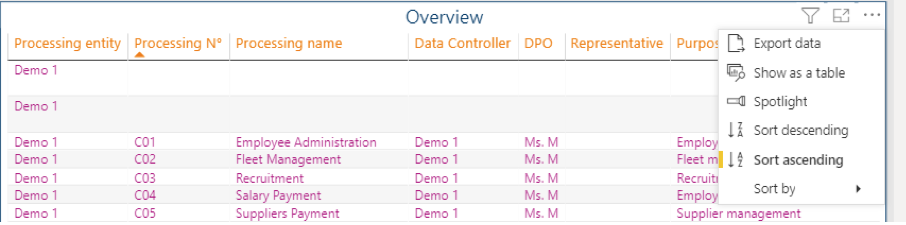
Please then choose your preferred file format and click on Export.