4.1 Accessing for the 1st time
The email addresses of authorized users are provided to the TPOmap Support Team as part of the TPOmap set-up process.
As a result, authorized users will receive an invitation from The Privacy Office in their email inbox to access TPOmap.
In order to access TPOmap, your email address needs to be associated to a Microsoft account.
Multi-Factor-Authentication will be required to login to TPOmap (will be configured during first login, if not yet activated in your account)
- If your email address is already associated with a Microsoft account, please follow Section 4.1.1. Opening the invitation with an email ALREADY associated to a Microsoft Account
- If your email needs to be associated with a Microsoft account, please follow Section 4.1.2. Opening the invitation with an email NOT YET associated to a Microsoft Account
- In both cases, please follow Section 4.1.3. Log in to TPOmap to complete your invitation process
You can perform this operation using a compatible computer or smartphone.
4.1.1 Opening the invitation with an email ALREADY associated to a Microsoft Account
When your email is already associated to a Microsoft Account, you need to:
STEP 1 – Accept invitation
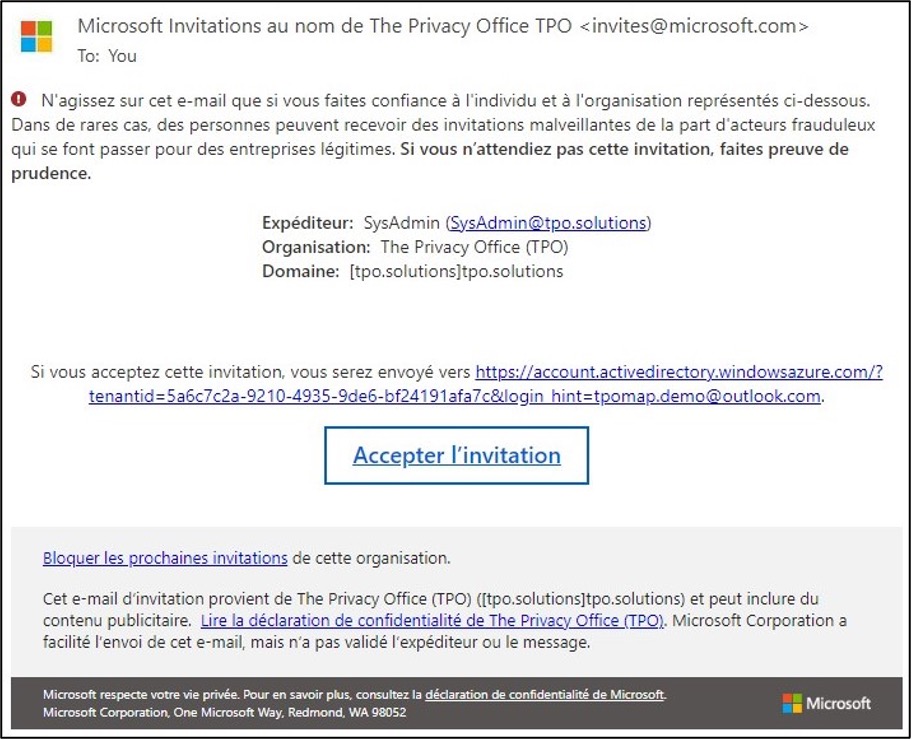
Please click on the Accept Invitation (Accepter l’invitation) button in the invitation email (or click on the link).
The system will automatically detect that your email is already associated with a Microsoft account and you can proceed with the connexion to TPOmap.
STEP 2 – Login

A) Please enter your Microsoft account password and click Sign in.
B) Please click Send code and Code (sent via Email).
|
If you already have a Microsoft account but forgot its password, you can use the Forgot password? functionality to recover it. Please note that this functionality is managed by Microsoft, please contact Microsoft support directly for help in this matter. We don’t recommend using the Keep me signed in option if you are not connecting from your own secured device. |
STEP 3 – Permissions
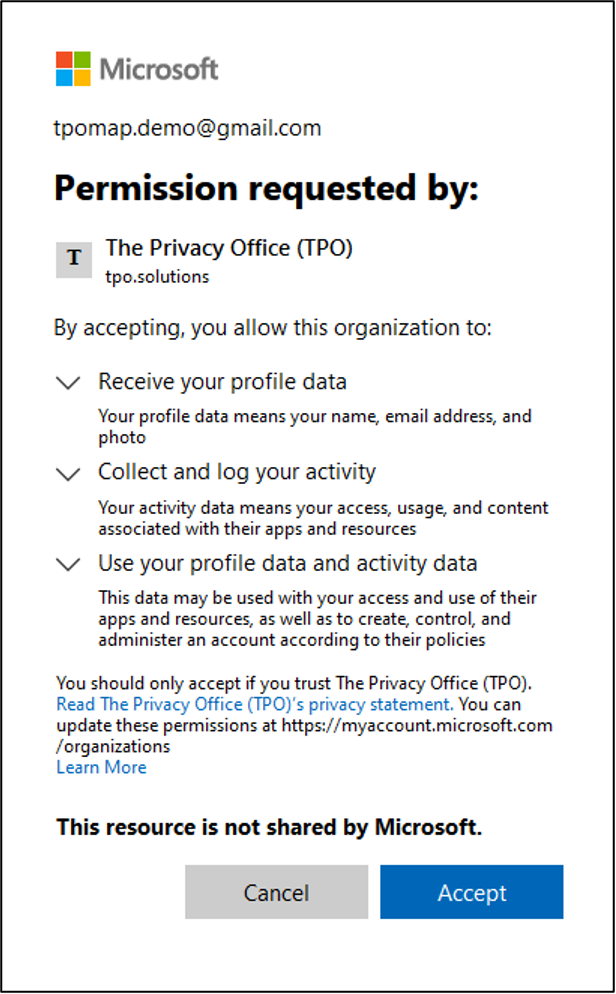
Please review the permission required by The Privacy Office to manage your account and click on the Accept button.
STEP 4
Some additional Information may be required by Microsoft to configure the Multi-Factor-Authentication.
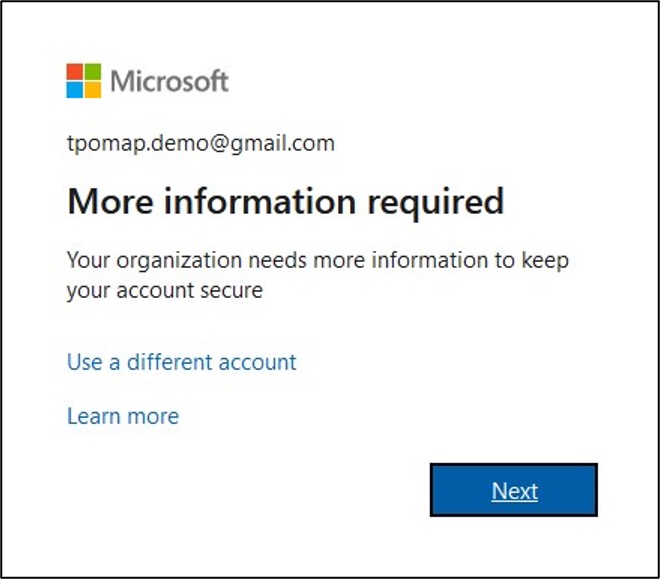
Click on the Next Button.
STEP 5
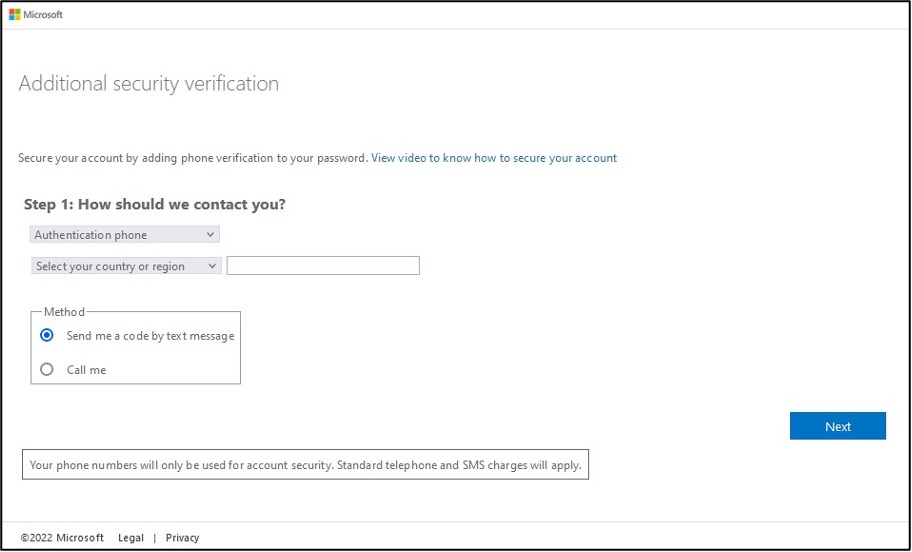
Enter your phone number
In order to verify that your email account is legitimate, Microsoft will send you a security code by phone or mobile app.
- Choose Authentication phone (to receive code via SMS) [recommended]
- Choose Office phone (to receive a phone call)
- Choose Mobile App (to receive a notification via mobile App)
STEP 6
Please enter the security code provided to you by Microsoft by phone.
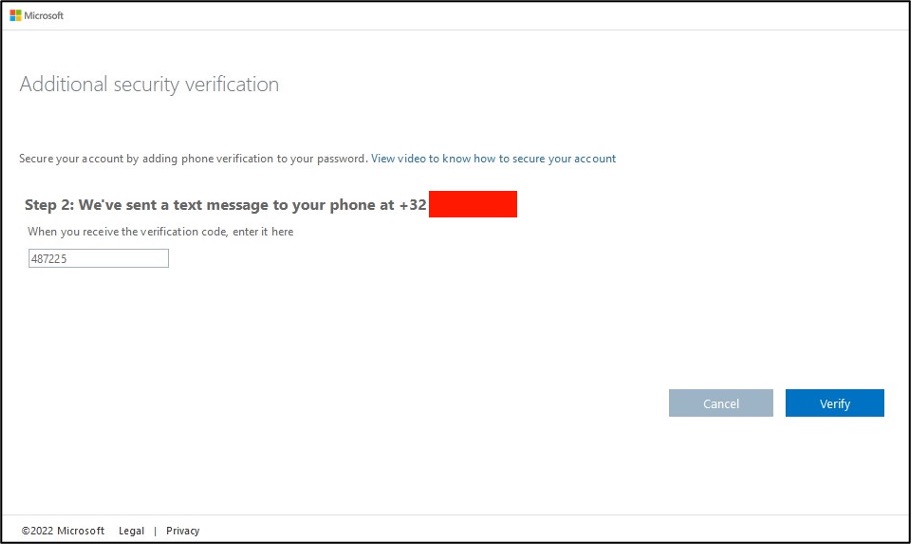
STEP 7
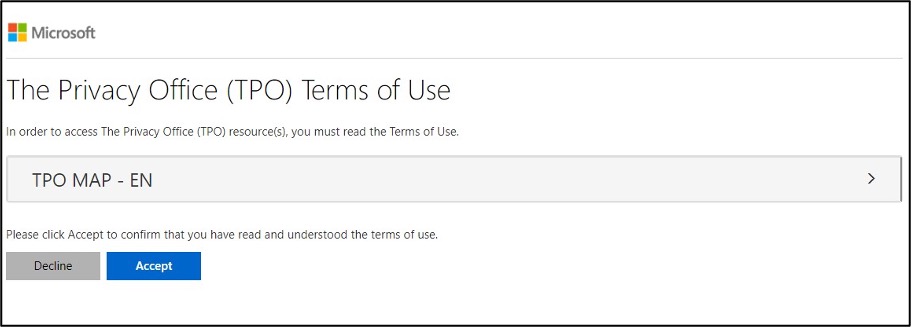
At first Login please review the Terms of Use by The Privacy Office to manage your account and click on the Accept button.Before accepting you need to open the agreement by choosing a language.
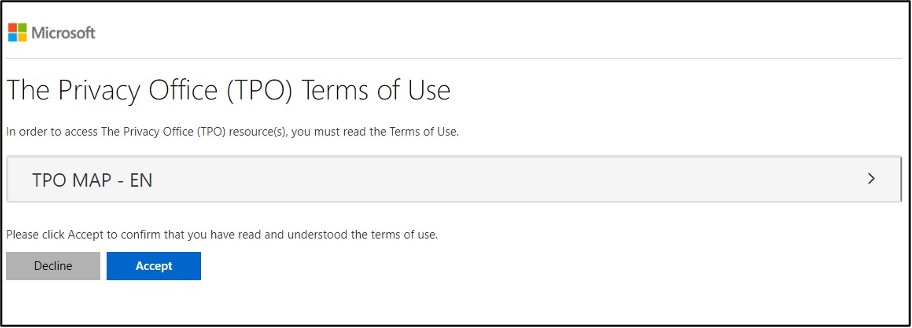
You can now proceed to the next Section 4.1.3. Log in to TPOmap.
4.1.2 Opening the invitation with an email NOT YET associated to a Microsoft Account
When your email IS NOT associated to a Microsoft Account, you need to:
STEP 1 – Accept invitation
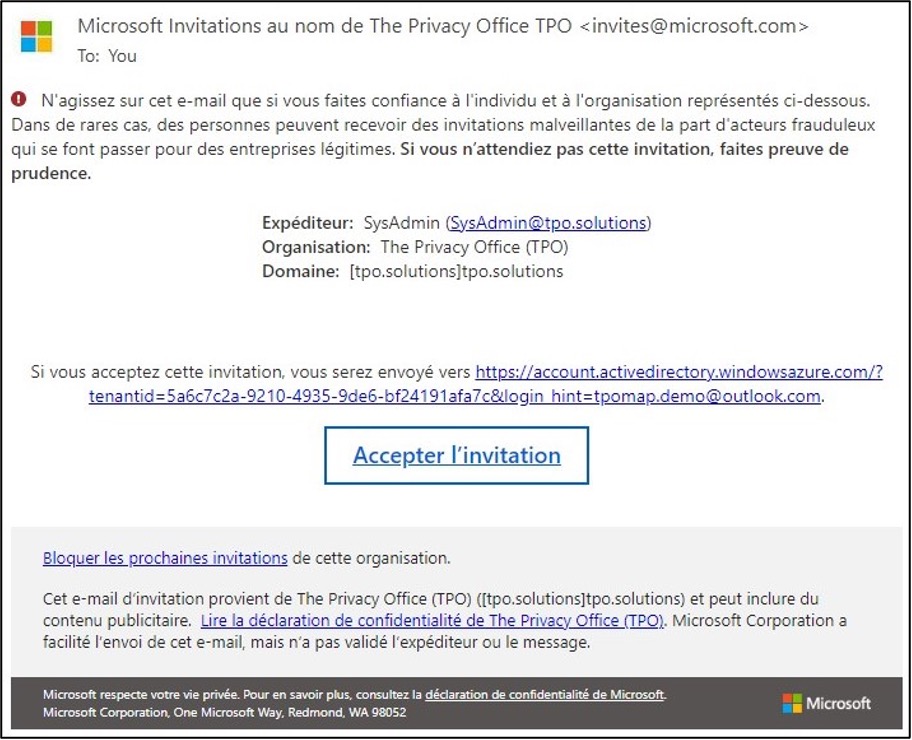
Please click on the Accept Invitation (Accepter l’invitation) button in the invitation email (or click on the link).
STEP 2 – Login
The system will automatically detect that your email is not associated to a Microsoft account and will only offer a Code to verify login.
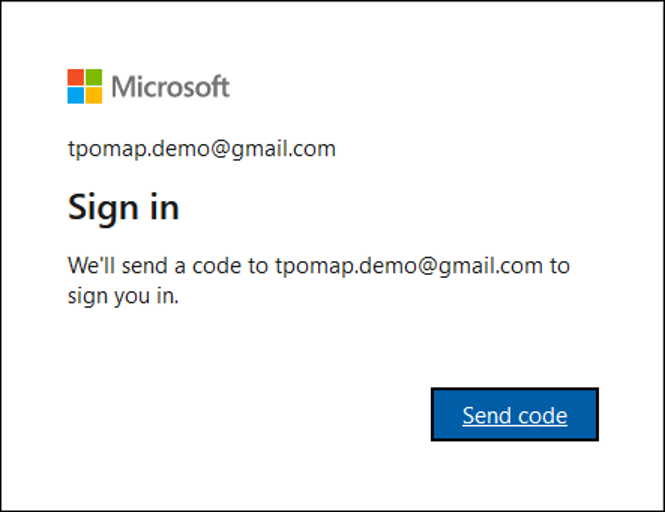
Please click on the Send Code button to proceed to the creation of a Microsoft account. You will receive an Email with a Code (8 digits)
Please note that the creation of a Microsoft account is managed by Microsoft, please contact Microsoft support directly for help with the creation of your Microsoft account.
STEP 3 – Permissions
Please review the permission required by The Privacy Office to manage your account and click on the Accept button.
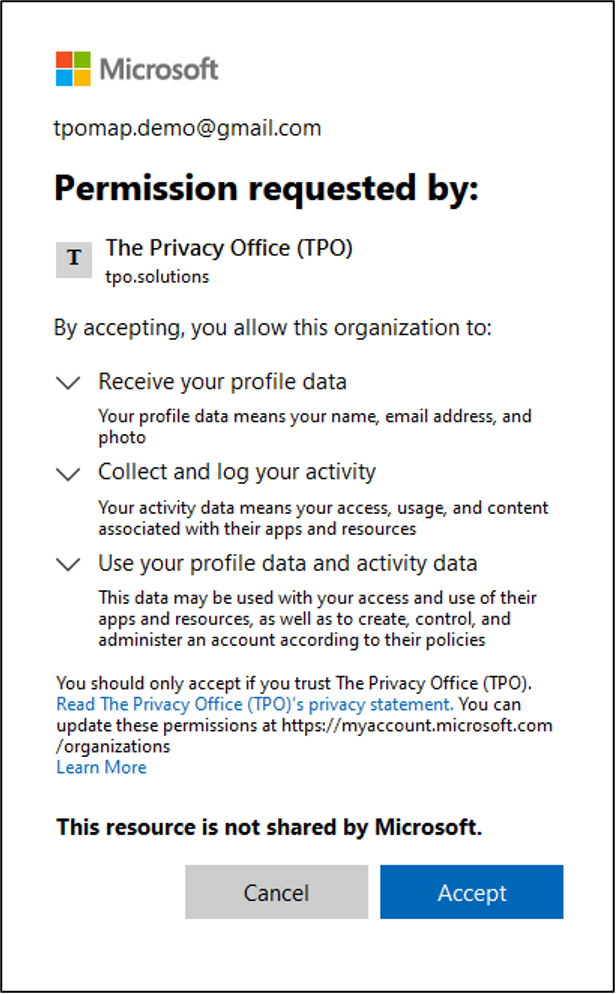
STEP 4
Some additional Information is required by Microsoft to configure the Multi-Factor-Authentication.
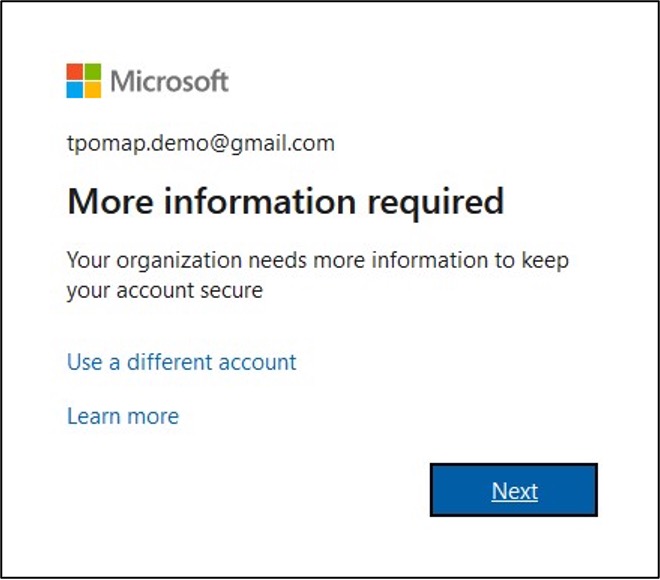
Click on the Next Button.
STEP 5
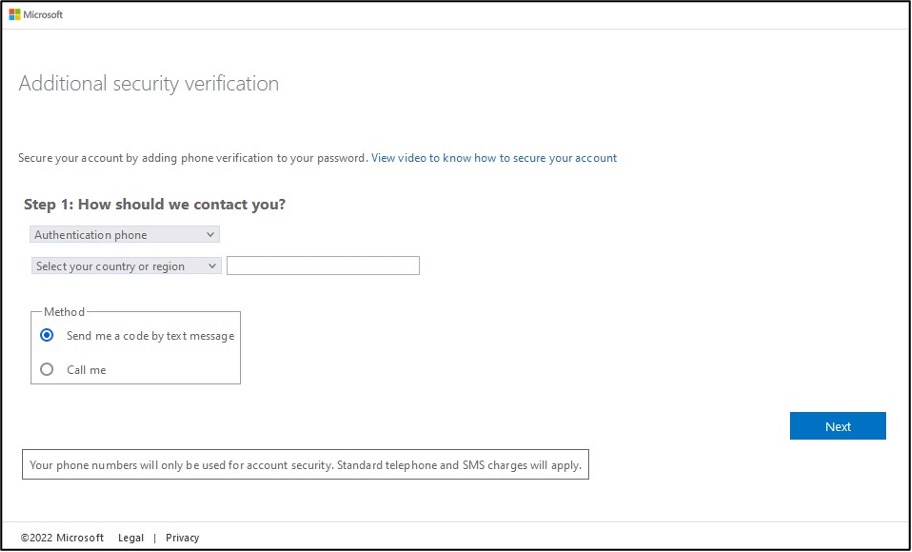
Enter your phone number
In order to verify that your email account is legitimate, Microsoft will send you a security code by phone or mobile app.
- Choose Authentication phone (to receive code via SMS) [recommended]
- Choose Office phone (to receive a phone call)
- Choose Mobile App (to receive a notification via mobile App)
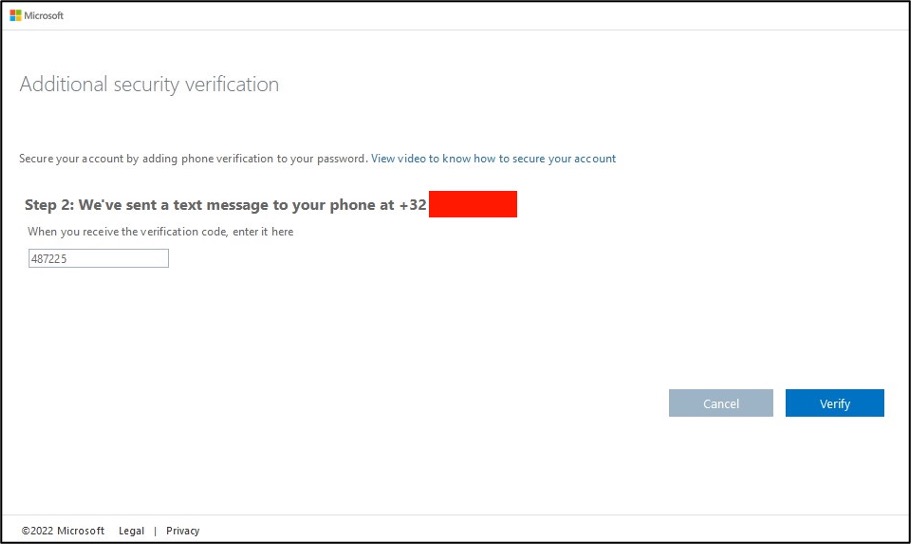
STEP 6
Please enter the security code provided to you by Microsoft by phone.
STEP 7
At first Login please review the Terms of Use by The Privacy Office to manage your account and click on the Accept button.
Before accepting you need to open the agreement by choosing a language.
You can now proceed to the next Section 4.1.3. Log in to TPOmap.
4.1.3 Log in to TPOmap
STEP 1
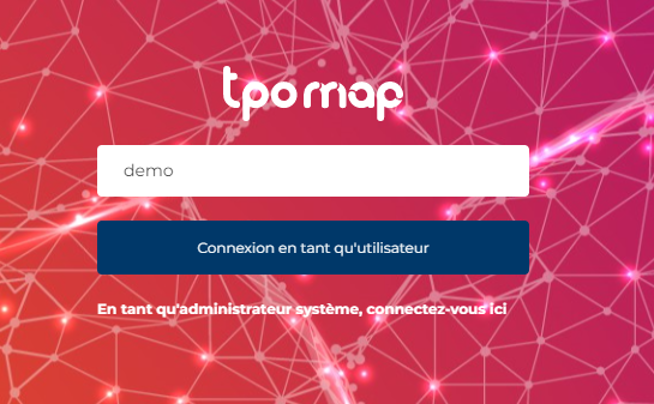
You are now able to log into TPOmap by connecting via our website use.tpomap.com or through our website tpo.solutions or tpomap.com and then click on the “Login” button.



|
Please note that the visual may differ on other systems than Microsoft Windows 10 and on Smartphones or Tablets.
|
STEP 2
Once you reach TPOmap log in page either through your web browser or smartphones and tablets versions, you need to enter the client’s name that The Privacy Office will have communicated in the invitation email and click on “Login as user”.
STEP 3
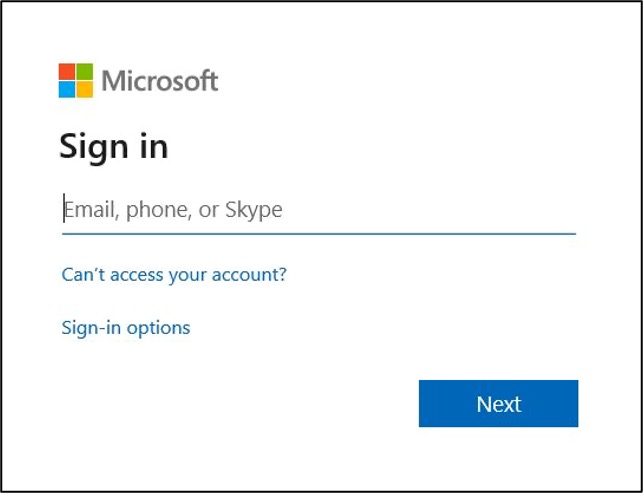
If prompted, please enter the email address registered into TPOmap environment
STEP 4
If prompted, please enter the password (or confirm code) associated with your account in order to access TPOmap

If you forgot your password, you could use the Forgot password? functionality to recover it.
Please note that this functionality is managed by Microsoft, please contact Microsoft support directly for help in this matter.
You will now have access to all the components of TPOmap: the TPOmap Application; the TPOmap Documentation Center and the TPOmap Dashboard.